Canva has always been the go-to design tool for people who are not designers. If you have ever needed a social media post, a presentation, a thumbnail, or a simple logo — you have probably used Canva at some point.
But over the past year, Canva has gone all-in on AI. They have added AI image generation, AI text writing, AI-powered design suggestions, background removal, video editing, and a whole collection of features they call Magic Studio.
The question is — are these AI features actually good? Or is it just marketing hype wrapped around mediocre tools?
I have been using Canva regularly for content creation, and I have tested every major AI feature they offer. In this review, I am going to share what genuinely works, what falls short, and whether Canva AI is worth your time in 2026 — especially if you are a beginner or a solo creator working with a limited budget.
This is not a paid review. Canva is not sponsoring this. Just my honest experience.
What Is Canva Magic Studio
Contents
- 1 What Is Canva Magic Studio
- 2 Magic Media — AI Image Generation
- 3 Magic Write — AI Text Generation
- 4 Magic Eraser and Background Remover
- 5 Magic Resize
- 6 Magic Animate and Video Features
- 7 Magic Design — AI-Powered Templates
- 8 Free vs Pro — Is Canva Pro Worth Paying For
- 9 How Canva AI Compares to Other Tools
- 10 Who Should Use Canva AI
- 11 Who Might Want Something Else
- 12 Tips to Get the Most Out of Canva AI
- 13 Final Verdict
Magic Studio is Canva’s umbrella name for all their AI-powered features. Instead of scattering AI tools across random menus, they grouped everything under one brand. It includes image generation, text generation, design automation, background editing, video tools, and more.
Some Magic Studio features are available on the free plan. Others are locked behind Canva Pro, which costs around 12 to 13 dollars per month or about 120 dollars per year.
Let me go through the most important features one by one and give you my honest take on each.
Magic Media — AI Image Generation

This is Canva’s built-in AI image generator. You type a text prompt describing what you want, and it creates an image for you — right inside Canva. No need to visit a separate website or upload anything.
What I Like
The convenience factor is huge. You are already inside Canva working on a design, and you can generate a custom image without leaving the platform. That seamless workflow saves real time.
The quality of generated images is decent for most everyday uses — social media posts, blog thumbnails, presentation slides, and general content visuals. It handles landscapes, objects, and abstract concepts reasonably well.
You can choose between different styles like photo, drawing, painting, and 3D. This gives you some creative flexibility depending on the type of visual you need.
What Falls Short
Compared to dedicated AI image generators like Leonardo AI or Midjourney, Canva’s image quality is noticeably lower. The images often look a little generic or overly smooth. Fine details like hands, faces, and text inside images are still problematic — though this is a common issue across most AI image tools.
The free plan gives you a very limited number of AI image generations. After that, you need Canva Pro. If you rely heavily on AI images, those free credits run out fast.
You also get less control over the output compared to specialized tools. There are no negative prompts, no model selection, and limited style adjustments. You type your prompt, pick a basic style, and hope for the best.
My Verdict on Magic Media
It is convenient and good enough for quick, everyday visuals. But if you need high-quality, detailed, or specific images, you are better off using a dedicated AI image generator and then importing the result into Canva for your design work.
Magic Write — AI Text Generation
Magic Write is Canva’s AI writing tool. You can use it to generate text for presentations, social media captions, blog outlines, brainstorming ideas, and general content drafts.
What I Like
It is useful for quick text needs when you are in the middle of designing. Need a caption for an Instagram post? A headline for a presentation slide? A short paragraph for a flyer? Magic Write can give you a decent starting point in seconds.
The integration with Canva’s design tools is smooth. You generate text and immediately place it in your design without switching between apps.
What Falls Short
The writing quality is basic. It gets the job done for short, simple text, but it lacks the depth, nuance, and customization you get from a dedicated AI writing tool like ChatGPT. For anything longer than a paragraph or anything that requires a specific tone, structure, or expertise level, Magic Write feels limited.
You also get a limited number of uses on the free plan. Canva Pro gives you more, but if you need serious AI writing help, a dedicated tool will serve you much better.
My Verdict on Magic Write
Handy for quick text inside Canva designs. Not a replacement for a proper AI writing tool or your own writing skills. Use it for small text elements, not for full content creation.
Magic Eraser and Background Remover

These two features let you remove objects from images and remove backgrounds with a single click. They are some of Canva’s most popular AI features, and for good reason.
What I Like
Background Remover works surprisingly well. One click and the background is gone. For product photos, profile pictures, and social media content, this saves a lot of time that you would otherwise spend in Photoshop or a dedicated background removal tool.
Magic Eraser lets you select and remove unwanted objects from an image. It is not perfect with complex scenes, but for simple removals — like getting rid of an unwanted sign, a person in the background, or a small object — it works reasonably well.
What Falls Short
Both features are locked behind Canva Pro. You cannot use them on the free plan, which is frustrating because they are genuinely useful tools.
Magic Eraser struggles with detailed or complex removals. If the object you want to remove overlaps with important parts of the image, the result can look unnatural. For professional-grade editing, you still need a dedicated photo editor.
Background Remover occasionally leaves rough edges around hair, fur, or transparent objects. It is good but not flawless.
My Verdict on Background Remover and Magic Eraser
Background Remover is genuinely excellent for everyday use and one of the best reasons to consider Canva Pro. Magic Eraser is useful but limited. Both save time for quick edits, but neither replaces a proper photo editing tool for detailed work.
Magic Resize
Magic Resize lets you take a design you have created and instantly resize it for different platforms. Made an Instagram post? One click and you have a Facebook cover, a Pinterest pin, a Twitter header, and a LinkedIn banner — all adapted from the same design.
What I Like
This is a massive time saver if you create content for multiple social media platforms. Instead of redesigning from scratch for each platform’s dimensions, you resize and make minor adjustments. For social media managers and content creators, this feature alone can justify the cost of Canva Pro.
What Falls Short
It is a Pro-only feature. And the resized designs are not always perfect — elements sometimes shift, overlap, or get cropped awkwardly. You usually need to manually adjust each resized version, which reduces the “magic” factor somewhat.
My Verdict on Magic Resize
Very useful if you manage content across multiple platforms. The auto-resize is not flawless, but it gives you a strong starting point that is much faster than creating each version from scratch.
Magic Animate and Video Features
Canva now lets you add animations to your designs and create short videos directly inside the platform. You can animate text, elements, and transitions with preset styles. There is also a basic video editor for trimming, combining clips, and adding music.
What I Like
For simple animated social media posts, short promotional videos, and presentation animations, Canva’s tools are surprisingly capable. The preset animation styles look clean and professional. Adding background music from Canva’s library is easy.
If you need quick video content and do not want to learn a full video editing software, Canva fills that gap nicely.
What Falls Short
For anything beyond basic animations and simple video edits, Canva’s video tools feel limited. If you need advanced editing, precise timing, multi-track audio, or complex transitions, you will need a dedicated video editor like CapCut, DaVinci Resolve, or Premiere Pro.
The AI-powered animation suggestions are decent but not groundbreaking. They work best for social media content that does not require detailed motion design.
My Verdict on Video Features
Great for quick, simple video and animation needs. Not a replacement for dedicated video editing tools for anything complex or longer-form.
Magic Design — AI-Powered Templates
Magic Design lets you upload an image or describe what you need, and Canva generates a set of design templates tailored to your input. It pulls from Canva’s massive template library and customizes the layout, colors, and text based on your brief.
What I Like
This is genuinely useful when you have no idea where to start. Instead of scrolling through thousands of templates hoping to find one that fits, Magic Design gives you a curated set of options based on your specific needs. It speeds up the starting phase of any design project.
What Falls Short
The suggestions are not always on point. Sometimes the generated designs feel generic or miss the mark completely. You still need to customize them significantly to get something that looks polished and matches your brand.
It also works better for some content types than others. Social media posts and presentations get good suggestions. More specialized designs like infographics or detailed layouts tend to get weaker results.
My Verdict on Magic Design
A useful starting point for inspiration and quick design creation. Not a replacement for thoughtful design work, but it removes the “blank canvas” problem effectively.
Free vs Pro — Is Canva Pro Worth Paying For
This is the big question. Let me break it down honestly.
What You Get for Free
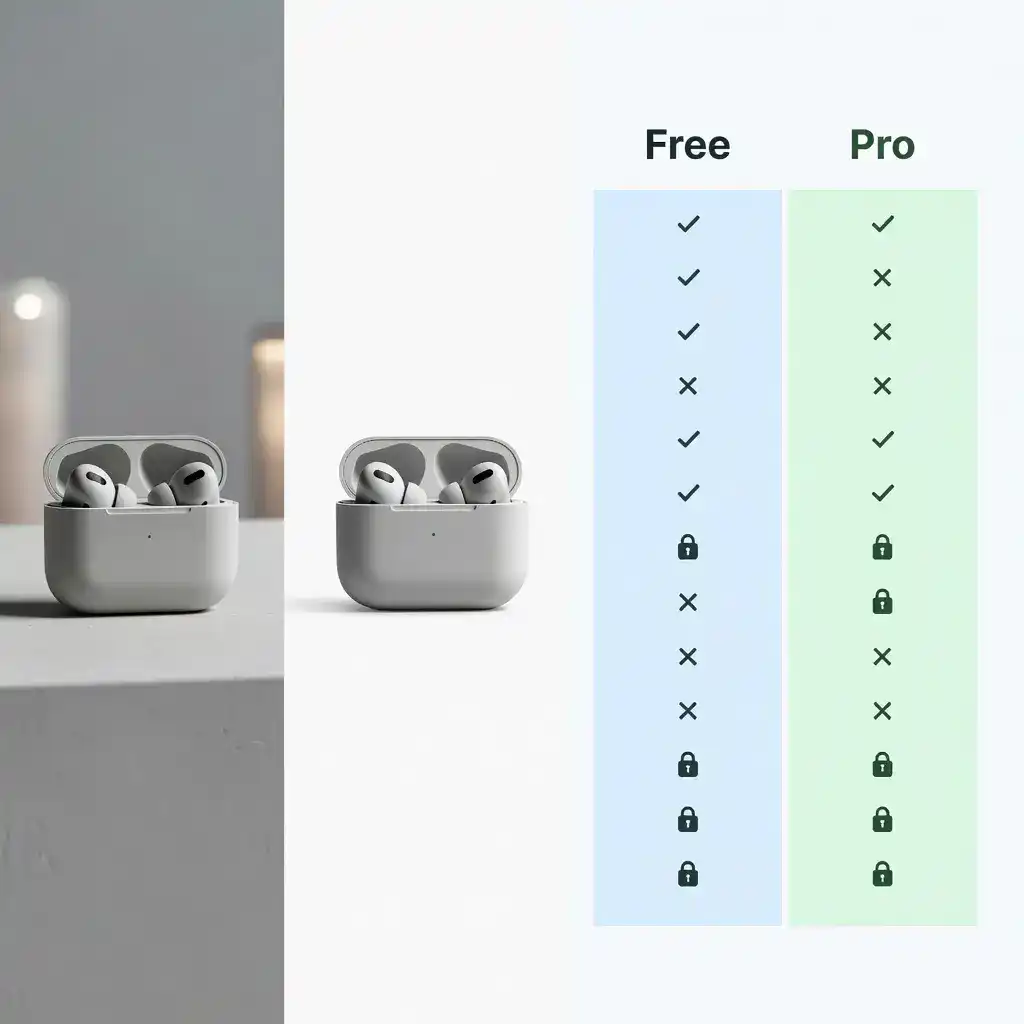
The free version of Canva is genuinely generous. You get access to thousands of templates, a drag-and-drop editor, basic design elements, stock photos, limited AI features (a few Magic Write and Magic Media uses), collaboration tools, and the ability to download your designs in multiple formats.
For a beginner or someone with occasional design needs, the free plan is more than enough. You can create professional-looking social media posts, presentations, and basic graphics without spending a dollar.
What Pro Adds
Canva Pro unlocks Background Remover, Magic Eraser, Magic Resize, significantly more AI generation credits, access to the full stock photo and element library (over 100 million assets), brand kit functionality, the ability to schedule social media posts directly, and priority support.
The biggest value additions in Pro are Background Remover, Magic Resize, and the expanded asset library. If you use these features regularly, Pro pays for itself in time saved.
My Honest Recommendation
If you design occasionally — a few social media posts per week, the odd presentation, a blog thumbnail here and there — the free plan is fine. You do not need Pro.
If you design regularly as part of your work or content creation process, and especially if you manage content across multiple platforms, Pro is worth considering. The time-saving features add up quickly.
If you are on a tight budget, start free. Learn the platform well. Then upgrade to Pro when you feel genuinely limited by the free version — not before.
How Canva AI Compares to Other Tools
Let me give you a quick, honest comparison so you can understand where Canva AI fits in the bigger picture.
Canva AI vs ChatGPT for writing: ChatGPT is far more powerful for any serious writing task. Canva’s Magic Write is fine for short text inside designs, but for blog posts, emails, full content, or anything that requires depth and customization — ChatGPT wins easily.
Canva AI vs Leonardo AI or Midjourney for images: Dedicated AI image generators produce noticeably higher quality images with more control over style, detail, and composition. Canva’s image generator is good for quick, convenient visuals, but it cannot compete on quality or flexibility.
Canva AI vs CapCut for video: CapCut is a much more capable video editor with better AI features for video-specific tasks. Canva’s video tools are fine for simple, short clips, but CapCut is the better choice for anything more involved.
Canva’s real advantage: It is the only platform that combines design, writing, image generation, video, and presentation tools all in one place. No other single tool does that. If you value having everything in one workflow — even if each individual feature is not best-in-class — Canva is hard to beat.
Who Should Use Canva AI
Based on my experience, Canva AI is the best fit for these types of users.
Social media content creators who need to produce visual content regularly and want an all-in-one platform.
Bloggers and small business owners who need quick visuals without hiring a designer or learning complex software.
Students and educators who create presentations, posters, and educational materials frequently.
Beginners who are not comfortable with specialized tools and want something intuitive and user-friendly.
Teams that collaborate on designs and need a shared platform with easy access for everyone.
If you fall into any of these categories, Canva AI is worth trying — at minimum on the free plan.
Who Might Want Something Else
Canva AI might not be the best fit if you need high-quality, detailed AI-generated images for professional use — try Leonardo AI or Midjourney instead. If you need advanced video editing — try CapCut or DaVinci Resolve. If you need powerful AI writing — use ChatGPT or Claude. And if you need professional-grade graphic design — Adobe Photoshop or Illustrator are still the industry standards.
Canva AI is a jack of many trades. It does a lot of things well, but it is not the master of any single one. That is both its strength and its limitation.
Tips to Get the Most Out of Canva AI

If you decide to use Canva AI, here are some practical tips to maximize your results.
Write specific prompts for image generation. Instead of “a sunset,” try “a peaceful ocean sunset with pink and orange clouds, soft warm lighting, photorealistic.” More detail gives better results, even with Canva’s simpler image generator.
Use Magic Write for starting points, not final text. Generate a draft, then edit and rewrite it in your own voice. Never use AI-generated text as-is for anything public.
Customize templates after Magic Design suggests them. The auto-generated designs are starting points. Change the colors, fonts, images, and layout to match your brand and style.
Learn keyboard shortcuts. Canva has keyboard shortcuts for common actions like copying, aligning, grouping, and resizing elements. Learning these saves significant time if you design regularly.
Use Brand Kit if you have Pro. Set up your brand colors, fonts, and logos in the Brand Kit. This ensures consistency across all your designs and speeds up your workflow.
Combine Canva with other AI tools. Generate images in Leonardo AI, write text in ChatGPT, edit videos in CapCut — then bring everything into Canva for final assembly. Using Canva as your assembly platform while using specialized tools for each component gives you the best of both worlds.
Final Verdict
Canva AI in 2026 is genuinely useful, especially for non-designers who need to create visual content regularly. The Magic Studio features add real value to an already strong platform. Background Remover is excellent. Magic Resize is a real time saver. Magic Media and Magic Write are convenient for quick tasks.
But it is not a replacement for specialized tools. If you need the best image generation, the best writing, or the best video editing — dedicated tools will outperform Canva in each of those areas.
What Canva does better than anyone else is bring everything together in one place. For a solo creator, a small business owner, or a beginner who does not want to juggle five different tools — that convenience is genuinely valuable.
My recommendation: start with the free version. Explore the AI features. See how they fit into your workflow. If you find yourself using Canva regularly and bumping into free plan limits, consider upgrading to Pro. But do not pay for Pro until you know you need it.
Canva AI is not perfect. But it is practical, accessible, and constantly improving. And for most people creating content online in 2026, that is more than enough.