
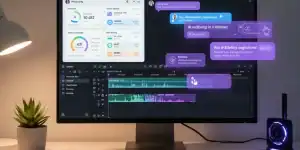
If someone had told me three years ago that a completely free video editing app would be able to do auto captions, AI background removal, and professional-grade transitions — I would not have believed them. But here we are in 2026, and CapCut does all of that and more without asking for a single dollar.
Whether you are creating YouTube videos, Instagram Reels, TikTok content, or just editing a personal clip — CapCut is probably the most powerful free video editor you can use right now. The problem is, most people only scratch the surface. They add a filter, slap on some text, and call it done.
This guide is going to change that. I am going to walk you through everything — from the very first time you open CapCut to the advanced features that most people do not even know exist. By the end, you will be editing videos like someone who has been doing this for years.
What is CapCut and Why Should You Care?
Contents
- 1 What is CapCut and Why Should You Care?
- 2 CapCut Mobile vs Desktop vs Web — Which One to Use?
- 3 How to Download and Install CapCut
- 4 Understanding the CapCut Interface
- 5 Your First Video Edit — Step by Step
- 6 CapCut Auto Captions — The Feature Everyone Loves
- 7 AI Background Removal — How It Works
- 8 10 CapCut Tips That Most People Do Not Know
- 9 Best Export Settings for Each Platform
- 10 CapCut Free vs CapCut Pro — Do You Need Pro?
- 11 Common CapCut Problems and How to Fix Them
- 12 Frequently Asked Questions
- 13 Final Thoughts
CapCut is a free video editing application made by ByteDance, the same company behind TikTok. It started as a simple mobile editor but has evolved into a full-featured editing suite available on mobile, desktop, and even as a browser-based web app.
Here is why CapCut matters in 2026:
- Completely free — most features that cost money in other editors are free in CapCut
- AI-powered — auto captions, background removal, and smart editing are built in
- Cross-platform — works on Android, iOS, Windows, Mac, and web browser
- No watermark — unlike many free editors, CapCut does not force a watermark on your videos
- Huge template library — thousands of ready-made templates for every platform
- Regular updates — new features drop almost every month
I have tested Premiere Pro, DaVinci Resolve, InShot, VN Editor, and a dozen others. For 90% of content creators, CapCut offers everything they need — and it is free. That is not something you hear every day.
CapCut Mobile vs Desktop vs Web — Which One to Use?
CapCut is available on three platforms, and each has its own strengths. Let me break it down so you can pick the right one for your workflow.
| Feature | Mobile | Desktop | Web |
|---|---|---|---|
| Best For | Quick edits, Reels | Serious editing | No download needed |
| Timeline | Basic | Multi-track | Multi-track |
| Auto Captions | Yes | Yes | Yes |
| Export Quality | Up to 4K | Up to 4K | Up to 1080p |
| AI Features | Most | All | Most |
My recommendation: If you are serious about content creation, use the desktop version for main editing and the mobile app for quick on-the-go edits. The desktop version gives you the most control and the best export quality.
How to Download and Install CapCut
Getting CapCut on your device takes about 2 minutes. Here is how to do it on each platform.
On Mobile (Android and iOS)
- Open the Google Play Store (Android) or App Store (iOS)
- Search for “CapCut”
- Look for the official app by ByteDance (blue icon with a music note)
- Tap Install or Get
- Open the app once installed
- You can use it without creating an account, but signing in unlocks cloud features
On Desktop (Windows and Mac)
- Go to capcut.com
- Click “Download” for your operating system
- Run the installer
- Open CapCut and sign in with your TikTok, Google, or email account
- You are ready to start editing
On Web Browser (No Download)
- Go to capcut.com/editor
- Sign in with your account
- Start editing directly in your browser
- Works best in Chrome or Edge
Understanding the CapCut Interface
When you first open CapCut, especially the desktop version, it can look a bit overwhelming. But once you understand the layout, it becomes very intuitive. Let me walk you through each section.
The Main Sections
- Media Panel (Top Left) — This is where you import your video clips, photos, and audio files. You can also access CapCut’s built-in stock media here.
- Preview Window (Top Right) — This shows you a real-time preview of your video. Whatever you see here is what your final video will look like.
- Timeline (Bottom) — This is where the actual editing happens. You drag your clips here, arrange them in order, trim them, and add effects. Think of it as your video’s storyboard.
- Tools Panel (Left Side) — Contains all the editing tools like Text, Stickers, Effects, Transitions, Filters, and Audio.
- Properties Panel (Right Side) — When you select any element on the timeline, its settings appear here. You can adjust size, position, opacity, speed, and more.
Quick Tip
Spend 10 minutes just clicking around the interface before you start your first project. Click on every menu, hover over every icon. Getting familiar with where things are will save you hours of frustration later.
Your First Video Edit — Step by Step
Let me walk you through creating your first edited video in CapCut. We will keep it simple but the result will look surprisingly professional.
Step 1 — Create a New Project
Open CapCut and click “New Project” (desktop) or the + button (mobile). Choose your aspect ratio based on where you will post the video.
- 16:9 — YouTube videos
- 9:16 — TikTok, Instagram Reels, YouTube Shorts
- 1:1 — Instagram feed posts
- 4:5 — Instagram feed (taller version)
Step 2 — Import Your Media
Click “Import” and select your video clips, photos, or audio files from your device. You can import multiple files at once. They will appear in your Media Panel, ready to be dragged to the timeline.
Step 3 — Add Clips to the Timeline
Drag your clips from the Media Panel to the Timeline in the order you want them to appear. You can rearrange them by dragging left or right on the timeline.
Step 4 — Trim Your Clips
This is the most basic and most important editing skill. To trim a clip, select it on the timeline and drag the edges inward. The left edge controls where the clip starts, and the right edge controls where it ends. Remove any dead space, awkward pauses, or unnecessary footage.
Step 5 — Add Transitions
Click on the gap between two clips on the timeline. CapCut will show you a library of transitions. Some good ones to start with:
- Dissolve — classic, clean, works everywhere
- Fade to Black — great for scene changes
- Slide — modern feel, good for social media
- Zoom — energetic, works for fast-paced content
Important
Do not overuse transitions. A common beginner mistake is adding a flashy transition between every single clip. Use them sparingly — in professional videos, most cuts are simple hard cuts with no transition at all.
Step 6 — Add Text
Click the Text tool from the left panel. You can add:
- Default text — type anything you want
- Text templates — pre-designed animated text styles
- Auto captions — CapCut transcribes your speech automatically (more on this below)
Step 7 — Add Music
Go to Audio in the left panel. CapCut has a massive library of royalty-free music and sound effects. Browse by mood (happy, sad, energetic) or genre. Drag your chosen track to the audio layer on the timeline.
Step 8 — Export Your Video
Click the Export button (top right corner). Choose your settings:
- Resolution — 1080p for most uses, 4K if you need maximum quality
- Frame Rate — 30fps for normal videos, 60fps for smooth motion
- Format — MP4 works everywhere
Hit Export and wait for the render to finish. That is it — your first professionally edited video is done.
CapCut Auto Captions — The Feature Everyone Loves
This is probably the single most useful feature in CapCut and the reason many people use it over other editors. Auto captions automatically transcribe everything said in your video and add text captions synced to the audio.
How to Add Auto Captions
- Add your video to the timeline
- Click “Text” in the left panel
- Select “Auto Captions”
- Choose the language of the speech in your video
- Click “Generate”
- Wait 30 seconds to 2 minutes depending on video length
- CapCut will add captions synced to every word
How to Customize Caption Style
After generating captions, click on any caption on the timeline to customize:
- Font — choose from hundreds of fonts
- Size — bigger is better for mobile viewers
- Color — white with black outline is the most readable
- Position — center-bottom for YouTube, center for Reels
- Animation — word-by-word highlight is trending in 2026
- Background — add a semi-transparent box behind text for readability
Pro Tip
Always review auto captions word by word. The AI is good but not perfect — it sometimes gets names, technical terms, or slang wrong. A few minutes of review can save you from embarrassing mistakes.
AI Background Removal — How It Works
CapCut can remove the background from your video in real-time. No green screen needed. This was a paid feature in most editors until CapCut made it free.
Steps to Remove Background
- Select your clip on the timeline
- Look for “Remove Background” or “Cutout” in the properties panel
- Click “Auto Removal”
- CapCut will process the clip and remove the background
- You can then add any image, video, or solid color as the new background
This works best with:
- Good lighting on the subject
- Clear contrast between subject and background
- Minimal fast movement
- Single person in the frame
10 CapCut Tips That Most People Do Not Know
These are the tips that separate casual editors from people who create genuinely impressive content. I use all of these regularly.
1. Speed Ramping
Instead of setting a single speed for the whole clip, use speed curves. Select a clip, go to Speed, and choose “Curve.” You can create smooth slow-motion to fast-motion transitions that look incredibly cinematic.
2. Keyframe Animations
Keyframes let you animate any property over time — position, scale, opacity, rotation. This is how you create zoom-in effects, pan movements, and fade transitions manually. It takes practice but once you learn it, your videos will look ten times better.
3. Color Correction
Do not just use filters. Go to Adjust and manually tweak Brightness, Contrast, Saturation, Temperature, and Shadows. Small adjustments make a massive difference in how professional your video looks.
4. Text-to-Speech
CapCut has surprisingly natural-sounding AI voices. Go to Text, type your script, and click “Text to Speech.” Choose from dozens of voice options. Perfect for faceless YouTube channels.
5. Beat Sync
This feature automatically syncs your video cuts to the beat of your music. Add your music first, click “Beat Sync” or “Auto Beat,” and CapCut will mark every beat. Then arrange your clips to match.
6. Green Screen / Chroma Key
If you do have a green screen, CapCut handles chroma keying very well. Select the clip, go to Cutout, choose “Chroma Key,” and pick the green color. Adjust the strength until the background disappears cleanly.
7. Masking
Masks let you show only part of a clip. You can create circular reveals, split-screen effects, and creative transitions using the Mask tool in the overlay settings.
8. Audio Detach
Need just the audio from a video clip? Right-click the clip on the timeline and select “Detach Audio.” This separates the audio track from the video, letting you use them independently.
9. Stabilization
Got shaky footage? Select the clip and look for “Stabilize” in the properties. CapCut will smooth out camera shake. It is not magic — heavily shaky footage will lose resolution around the edges — but for minor shakiness, it works great.
10. Project Templates
Before starting from scratch, browse CapCut’s template library. Find a template close to what you want, apply it, and then customize it with your own content. This can cut your editing time in half.
Best Export Settings for Each Platform
| Platform | Ratio | Resolution | FPS |
|---|---|---|---|
| YouTube | 16:9 | 1080p or 4K | 30 or 60 |
| YouTube Shorts | 9:16 | 1080p | 30 |
| Instagram Reels | 9:16 | 1080p | 30 |
| TikTok | 9:16 | 1080p | 30 |
| 16:9 or 1:1 | 1080p | 30 | |
| 16:9 or 1:1 | 1080p | 30 |
CapCut Free vs CapCut Pro — Do You Need Pro?
Honestly? For most people, the free version is more than enough. But here is a fair comparison so you can decide for yourself.
Free Version Gets You
- Full editing timeline
- Auto captions
- Background removal
- Most effects and filters
- Text-to-speech
- 1080p export
- No watermark
Pro Version Adds
- 4K export
- Premium effects and templates
- More cloud storage
- Priority processing
- Additional AI features
- Commercial license
My take: Start with the free version. You can always upgrade later if you hit a limitation. Most creators I know use the free version for everything, including videos that get millions of views.
Common CapCut Problems and How to Fix Them
Frequently Asked Questions
Final Thoughts
CapCut has genuinely changed the video editing game by making professional-level tools accessible to everyone for free. Whether you are a complete beginner making your first Reel or a seasoned creator looking for a faster editing workflow, CapCut has something for you.
The key is to start simple. Do not try to learn every feature at once. Master the basics — importing, trimming, transitions, text, and music — and then gradually explore auto captions, background removal, keyframes, and speed ramping. Within a week of daily use, you will be editing videos that look like they were made by a professional.
I will be creating more detailed CapCut tutorials in the coming weeks, covering specific topics like creating viral Reels, building a faceless YouTube channel with CapCut, and advanced color grading techniques. Stay tuned.
Related guides you might find useful: